Print #13 — Drawer divider: measure twice, print once
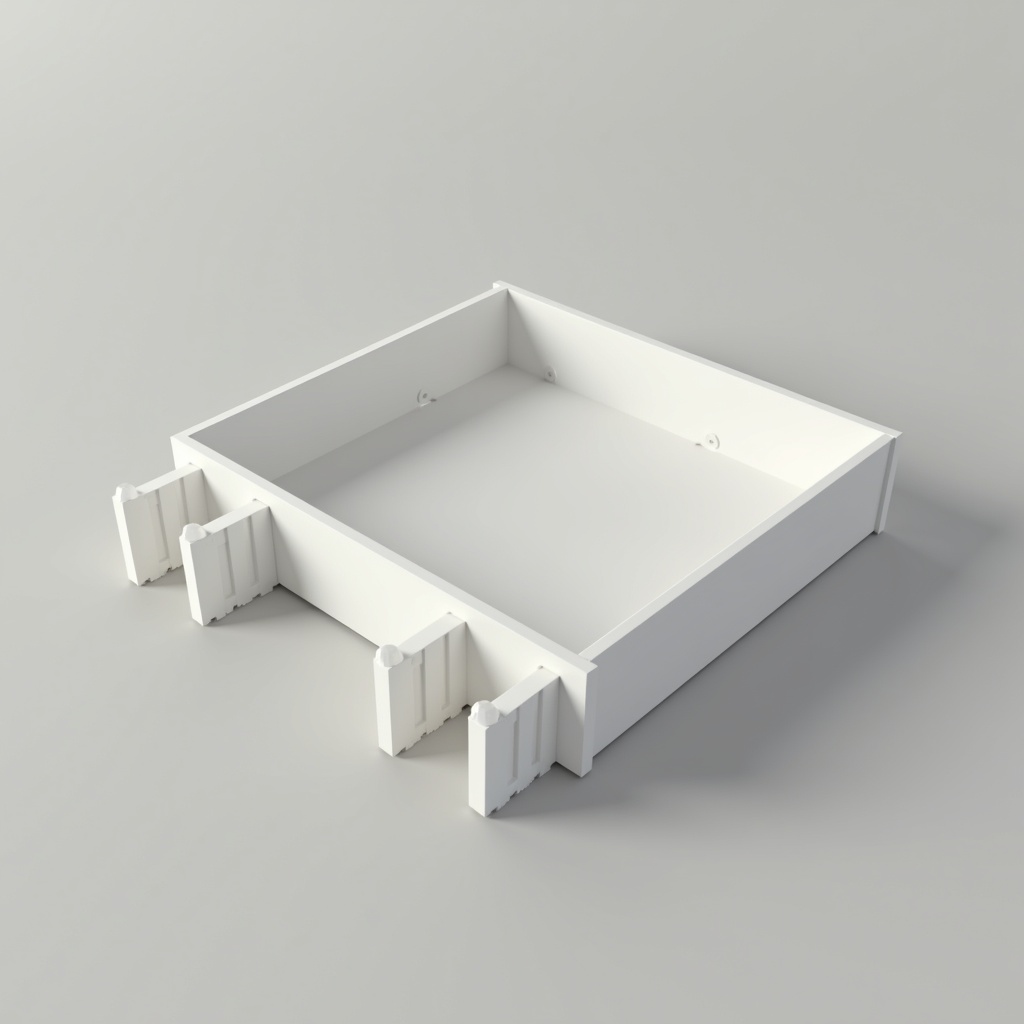
Title: Print #13 — Drawer Divider: Measure Twice, Print Once
Here's the trap every beginner falls into: you find a drawer divider on Printables, hit print, and it's either 3mm too short or 8mm too wide for your actual drawer.
You wasted 90 minutes of filament.
The fix isn't finding a better model. The fix is understanding parametric design — and learning to measure your space before you ever open a slicer.
What is parametric design? A parametric model has variables instead of fixed dimensions. Instead of "this divider is 250mm long," it's "the length is whatever you set." On Thingiverse, this is handled by the Customizer — a browser-based tool that lets you enter your exact measurements and generate a custom STL without any CAD software.
On Printables and other platforms, some models include editable source files (OpenSCAD, FreeCAD, Fusion 360) where you change a number and the whole model updates.
Before you download anything: measure your drawer Get a ruler or tape measure. Write down:
- Interior width of the drawer
- Interior depth (front to back)
- Interior height (if your divider needs to be a certain height)
- Thickness of the drawer walls (to ensure your divider fits inside, not outside)
Then subtract 1–2mm from each dimension to account for clearance (see Print #11). A divider that's 1mm shorter than the drawer width will slide in easily and stay in place by friction.
Three ways to get a custom-sized divider:
Option 1 — Thingiverse Customizer: Find a parametric model, click "Open in Customizer," enter your measurements, download. Zero design skills required. Takes 5 minutes.
Option 2 — Scale a model in your slicer: Download a fixed-size model that's close to what you need, then scale it in Cura/PrusaSlicer. Quick and dirty — works if proportions don't matter, but distorts wall thickness if you scale unevenly.
Option 3 — OpenSCAD basics: The gentle entry point to actual design. OpenSCAD is free, code-based, and very logical. For a drawer divider, you'd write something like: `` length = 250; height = 50; thickness = 2; cube([length, thickness, height]); `` Change a number, press F5 to preview. That's it. You just designed a parametric object.
Recommended settings:
- Layer height: 0.2mm
- Infill: 15–20% (it's a thin structural wall, infill barely matters)
- Walls: 3–4 perimeters (the walls ARE the structure)
- Top/bottom layers: 3
- Supports: none (a flat divider doesn't need them)
- Speed: 50–60mm/s — fast is fine for this simple geometry
Printing multiple pieces: Drawer organization often requires several dividers. Batch print them: arrange multiple dividers on the bed, set them all to print together. Cura and PrusaSlicer handle multi-part plates easily. You'll halve your total print time versus printing one at a time.
What can go wrong:
- Divider too tight to fit: you didn't subtract clearance — add 1mm to each open end and reprint just that piece
- Divider tips over inside drawer: design doesn't have a base or grip feet — look for a model with rubber insert holes, or print a t-bottom version
- Wall too thin and flexes: increase walls to 4–5 perimeters or increase model thickness to 3mm
Why this matters beyond drawer dividers: Parametric design is the unlock for the rest of your maker journey. Once you can measure a space, find or modify a parametric file, and print to fit — you're not limited to what other people designed. You're designing for your reality.
That's the whole point of Level 2: your home, your dimensions, your prints.
Ready to layer up? → Print #14: The Broken Furniture Leg: Your First Reverse Engineering Job