Print #25 — Dual-Color Nameplate: Mastering the Filament Swap
Until now, your prints have probably been monochromatic. While single-color objects are great, adding a second color is the easiest way to m...
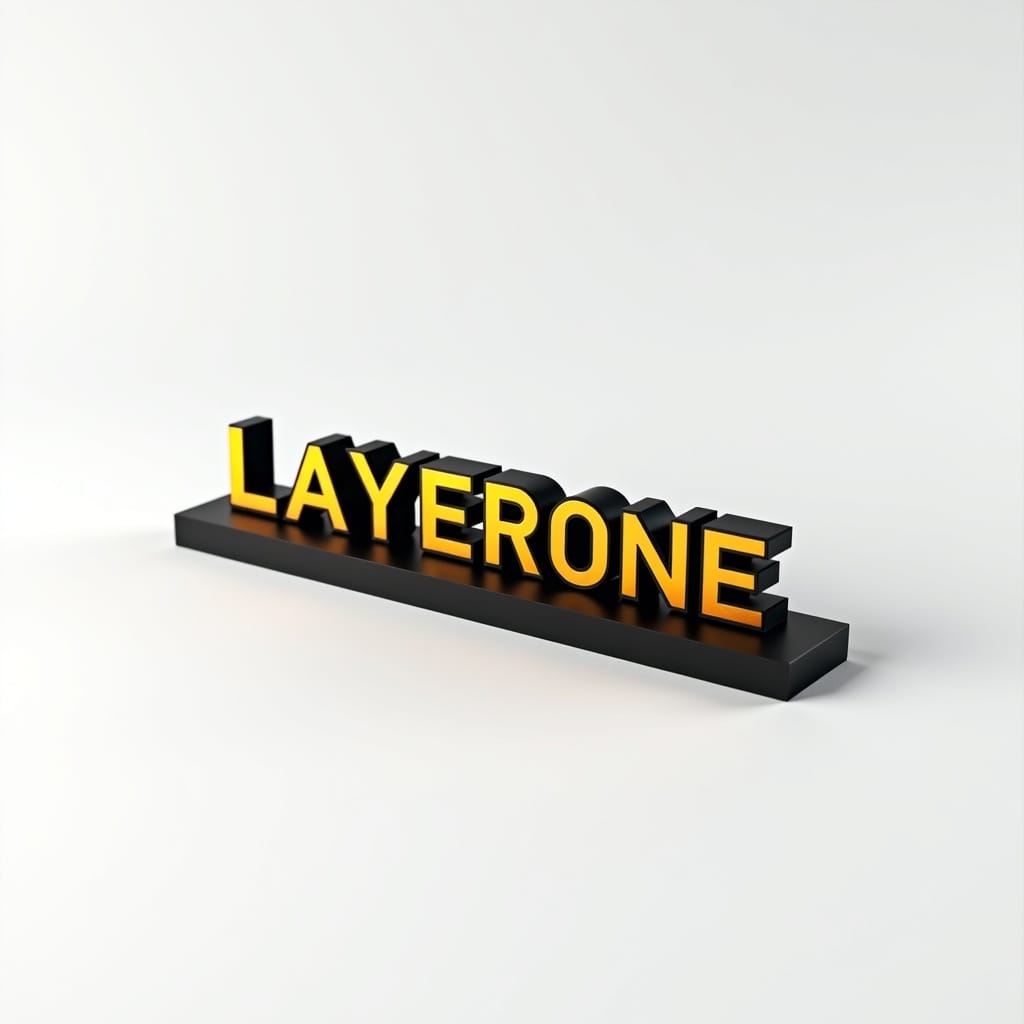
Until now, your prints have probably been monochromatic. While single-color objects are great, adding a second color is the easiest way to make your 3D prints look like professional, store-bought products. Today, we are making a custom nameplate, and we are going to learn the most essential multi-color technique: the manual filament swap.
You don't need a fancy multi-material unit (like a Prusa MMU or Bambu AMS) to print in two colors. Since most nameplates consist of a flat base and raised text, we can simply tell the printer to pause at the exact layer where the text starts, swap the filament, and resume.
The concept: Layer-Based Color Change
This technique works by "slicing" your model into two color zones. The bottom layers (the base) are printed in Color A, and the top layers (the text) are printed in Color B. The magic happens in your slicer (Cura, PrusaSlicer, or Bambu Studio), where you insert a "Color Change" command (G-code M600) at a specific height.
Recommended settings
- Material: PLA in two high-contrast colors (e.g., Black base with Gold text, or Navy base with White text).
- Layer height: 0.2mm for a good balance of speed and detail.
- Top Surface Pattern: "Monotonic" or "Hilbert Curve" for a premium look on the base before the text starts.
- Ironing: Enable ironing on "All top surfaces" to get a perfectly smooth, injection-molded finish on your letters.
How to trigger the swap:
1. Slice your model as usual.
2. In the preview tab, move the layer slider to the first layer where the text appears.
3. PrusaSlicer/Bambu: Right-click the "+" icon on the slider and select "Add Color Change."
4. Cura: Go to Extensions > Post Processing > Modify G-Code > Add a script > Pause at Height (or Filament Change).
What can go wrong
- Layer Shift: If you push the print head too hard while swapping filament, the next layers will be misaligned. Fix: Be gentle, or use a printer with "stepper holding" enabled during pause.
- Blob at start: A small blob of the new color might stick to the print when resuming. Fix: Always purge a few centimeters of the new filament and clean the nozzle tip thoroughly before clicking "Resume."
- Colors mixing: If you don't purge enough, the first few letters might look muddy. Fix: Purge until the new color comes out perfectly pure.
Why this print matters
Mastering the filament swap opens up a world of possibilities for signs, logos, and decorative parts. It forces you to interact with your G-code and understand exactly how your printer builds objects layer by layer. It’s the first step toward true multi-material manufacturing.
References
📁 Customizable Nameplate on Printables (OpenSCAD or Slicer Text tool):
Ready to layer up? → Print #26: Custom Phone Case and TPU Flex